
How to Add a Promotion on LinkedIn: A Step-by-Step Guide
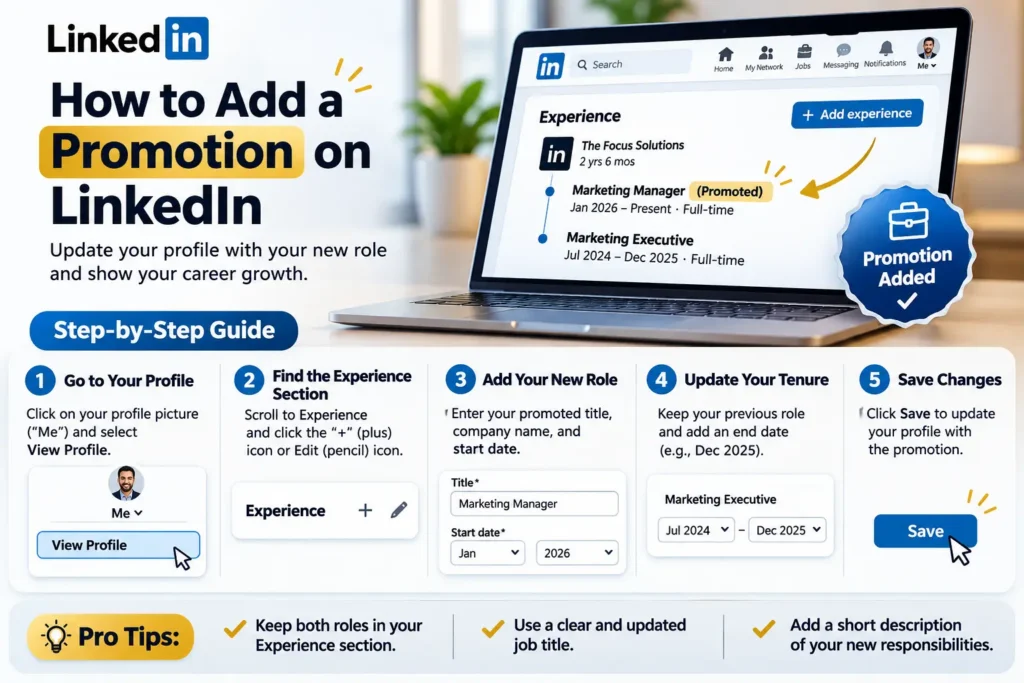
Getting promoted is an exciting career milestone. Whether you’ve moved from Marketing Executive to Marketing Manager or earned a senior leadership position, your LinkedIn profile should reflect that progress.
Fortunately, adding a promotion doesn’t require creating an entirely new LinkedIn profile. You can update your Experience section, add your new job title, and keep your previous position visible under the same company. You can also share a separate announcement with your professional network.
In this guide, you’ll learn how to add a promotion on LinkedIn, update your employment history, control profile notifications, and write a professional promotion announcement. You’ll also find practical examples and tips to make your career progression stand out.
What Does Adding a Promotion on LinkedIn Mean?
Adding a promotion to LinkedIn means updating your Experience section to show your new position within your current organization.
For example, imagine you joined a company as a Sales Executive in 2022. After demonstrating strong performance, you received a promotion to Sales Manager in 2025.
Instead of replacing your previous position, you can add the new role and show both positions under the same company.
This approach helps visitors understand your professional development without losing your employment history.
Difference Between Adding a Promotion and Announcing It
These two actions serve different purposes:
| Action | Purpose |
| Adding a promotion | Updates your LinkedIn Experience section. |
| Announcing a promotion | Shares your career achievement through a LinkedIn post. |
| Updating your headline | Highlights your current professional position. |
| Updating your About section | Explains your new responsibilities and expertise. |
Important: Updating your profile doesn’t always mean LinkedIn will publish a separate announcement. Your notification settings determine whether eligible profile changes reach your network.
How to Add a Promotion on LinkedIn (Step-by-Step)
You can add a promotion directly through your LinkedIn profile. Follow these steps to update your position accurately.
Step 1: Open Your LinkedIn Profile
First, log in to your LinkedIn account.
- Open LinkedIn on your desktop or mobile device.
- Click your profile picture or the Me icon.
- Select View Profile.
- Find the Experience section.
This section contains your current and previous employment details.
Step 2: Navigate to the Experience Section
Scroll down until you find Experience.
Click the plus (+) icon to add a position. Depending on your interface, you can also use the Add Profile Section option.
Select Add Position to open the experience form.
Step 3: Enter Your New Job Title and Company
Now, enter your updated professional information.
For example:
| Field | Example |
| Job title | Marketing Manager |
| Company name | ABC Digital Solutions |
| Employment type | Full-time |
| Location | New York, USA |
| Workplace type | Hybrid |
Choose the correct company page from LinkedIn’s suggestions rather than entering an unrelated company entry.
Selecting the right page helps connect your experience with the organization’s LinkedIn presence.
Step 4: Add Your Promotion’s Start Date
Enter the month and year when you officially started your new position.
For example, if your promotion became effective in March 2025, select March 2025.
Accurate dates matter because LinkedIn uses employment dates to organize your professional history.
Step 5: Update Your Job Responsibilities
Your new role probably involves different responsibilities. Explain what changed after your promotion.
For example:
Previous position: Marketing Executive
- Managed social media content.
- Researched marketing trends.
- Assisted with advertising campaigns.
New position: Marketing Manager
- Lead marketing strategy and campaign planning.
- Manage a team of marketing professionals.
- Monitor campaign performance and reporting.
- Coordinate marketing activities with sales teams.
Focus solution on your actual responsibilities and measurable achievements. Avoid adding duties that don’t reflect your work.
Step 6: Review Your Promotion Details
Before saving, check everything carefully:
- Your new job title is correct.
- Your company name matches the existing employer.
- Your promotion date is accurate.
- Your employment type reflects your arrangement.
- Your description highlights your new responsibilities.
Also, check the option to notify your network before saving.
Step 7: Save Your Updated Position
Click Save to add your new experience.
Visit your profile and check how LinkedIn displays both positions. If the company information matches and the dates meet LinkedIn’s grouping requirements, the positions can appear together under one company.
Your profile now reflects your career progression.
How to Add a Promotion on LinkedIn Using the Mobile App
You don’t need a computer to update your employment history. LinkedIn also lets you add positions through its mobile application.
Follow these steps:
- Open the LinkedIn app.
- Tap your profile picture.
- Tap your profile picture again to access your profile.
- Scroll to the Experience section.
- Tap the plus (+) icon.
- Select Add Position.
- Enter your new job title and company name.
- Add your promotion date and responsibilities.
- Review your notification settings.
- Tap Save.
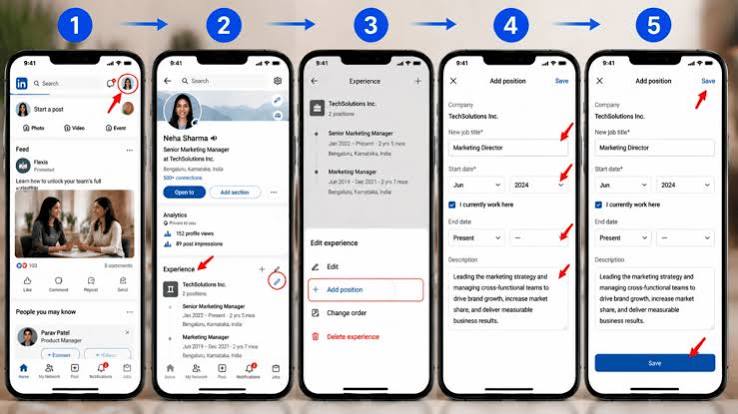
After saving, check your profile to confirm that your new position appears correctly.
Mobile tip: Review your job description before publishing. Long paragraphs can become difficult to read on smaller screens. Use short sentences and clear bullet points.
How to Show a Promotion on LinkedIn at the Same Company
One common question professionals ask is how to display two positions within the same organization.
The best approach is to add your new position separately while keeping your previous role in your employment history.
For example:
ABC Digital Solutions
- Marketing Manager | March 2025–Present
- Marketing Executive | January 2022–February 2025
LinkedIn can group these positions under one company when you associate them with the same company page and their dates meet its grouping requirements. LinkedIn’s guidance specifies that positions must be listed within one month of each other to group together.
Should You Delete Your Previous Job Position?
No. You generally shouldn’t delete your previous position when adding a promotion.
Your previous role provides useful context about your experience and professional development.
Keeping both positions helps recruiters and potential clients understand:
- How your career has progressed.
- How long you’ve worked with the organization.
- Which responsibilities you’ve taken on.
- How your professional expertise has developed.
What If LinkedIn Displays Two Separate Company Entries?
If LinkedIn displays your positions separately, check the following:
- Did you select the same official company page for both positions?
- Are the company names linked to the correct LinkedIn organization?
- Are the position dates accurate?
- Do the dates meet LinkedIn’s grouping requirements?
Correcting these details can help organize your employment history.
How to Announce a Promotion on LinkedIn
Adding your new position updates your profile. However, a separate LinkedIn post lets you share the achievement with your professional network.
A thoughtful announcement can help you thank colleagues, recognize your team’s support, and explain what you’re looking forward to.
How to Write a Professional Promotion Announcement
A good announcement usually includes four elements:
- Opening: Share your promotion and new job title.
- Gratitude: Thank your colleagues, managers, and mentors.
- Career reflection: Briefly acknowledge your professional journey.
- Looking ahead: Explain what you’re excited to accomplish.
Keep your message genuine. A personal and thoughtful announcement often feels more engaging than an overly formal corporate statement.
LinkedIn Promotion Announcement Examples
Here are three examples you can adapt to your situation.
Example 1: Simple and Professional
I’m excited to share that I’ve been promoted to Marketing Manager at ABC Digital Solutions!
I’m grateful to my colleagues and mentors for their continued support throughout this journey.
I’m looking forward to taking on new responsibilities, developing fresh strategies, and contributing to our team’s continued success.
Thank you to everyone who has supported me along the way!
Example 2: Leadership Promotion
I’m happy to announce my promotion to Senior Marketing Manager!
This opportunity represents an important step in my professional journey. I’m thankful to the leadership team and colleagues who have helped me grow.
I’m excited to lead generate new initiatives, support talented professionals, and achieve meaningful results together.
Looking forward to this next chapter!
Example 3: Short Career Update
A new chapter begins!
I’m pleased to share that I’ve been promoted to Sales Manager at ABC Company.
Thank you to my team, mentors, and everyone who has supported my growth. I’m excited about the opportunities and challenges ahead.
How to Share a Promotion on LinkedIn
Once you’ve prepared your message:
- Open your LinkedIn homepage.
- Click Start a post.
- Write your promotion announcement.
- Mention your company if appropriate.
- Add a relevant professional photograph if you want.
- Select your preferred audience.
- Review your post.
- Click Post.
Your announcement will appear according to the audience and visibility settings you selected.
Should You Turn On LinkedIn Notifications When Adding a Promotion?
LinkedIn allows you to control whether your network receives notifications about eligible profile updates.
When enabled, these changes may generate a feed post, an in-app notification, or an email notification.
However, you don’t have to notify everyone when updating your employment history.
How to Control Profile Update Notifications
You can manage this setting through LinkedIn’s privacy controls.
On desktop:
- Click the Me icon.
- Select Settings & Privacy.
- Open the Visibility tab.
- Find Share profile updates.
- Turn the setting On or Off.
On mobile:
- Tap your profile picture.
- Open Settings & Privacy.
- Select Visibility.
- Find Share profile updates.
- Change the toggle.
LinkedIn says eligible job updates may take up to two hours to reach your network. Your profile changes remain visible to people viewing your profile even when you turn notifications off.
For more details, check LinkedIn’s official profile update notification guide.
What Should You Update on Your LinkedIn Profile After a Promotion?
Adding a new job title is important, but your entire profile should reflect your current professional responsibilities.
Consider reviewing these sections after receiving a promotion.
Update Your LinkedIn Headline
Your headline appears directly below your name. It helps visitors understand your current role and expertise.
For example:
Before:
Marketing Executive at ABC Digital Solutions
After:
Marketing Manager | Digital Marketing Strategy | Team Leadership | Brand Growth
Keep your headline accurate and relevant to your professional goals.
Rewrite Your About Section
Your About section should explain your professional background, current expertise, and career direction.
If you’ve moved into management, mention your leadership responsibilities and strategic contributions.
Avoid simply repeating your job title. Explain what you do and the value you bring.
Add Relevant Skills and Achievements
A promotion often introduces new responsibilities and professional skills.
Consider adding relevant skills such as:
- Team Leadership
- Strategic Planning
- Project Management
- Business Development
- Performance Analysis
- Stakeholder Management
Only include skills that genuinely reflect your experience.
Update Your Professional Branding
Your profile photograph, banner, headline, and Experience section should present a consistent professional image.
If your promotion moves you into an executive or leadership position, review your profile branding optimize to ensure it reflects your current responsibilities.
Common Mistakes to Avoid When Adding a Promotion on LinkedIn
Small mistakes can make your profile confusing or inaccurate. Check these issues before publishing your update.
| Common mistake | How to avoid it |
| Deleting your previous position | Keep your earlier role to demonstrate career growth. |
| Selecting the wrong company page | Choose the same official company page for both roles. |
| Entering incorrect dates | Use your official promotion start date. |
| Reusing your old job description | Highlight responsibilities associated with your new position. |
| Forgetting notification settings | Review sharing preferences before saving. |
| Writing an exaggerated announcement | Keep your message honest and professional. |
| Leaving your headline outdated | Update your headline to reflect your current role. |
Expert tip: Don’t rush to publish your promotion announcement before your organization officially confirms the change. Make sure your title and effective date match the information your employer has approved.
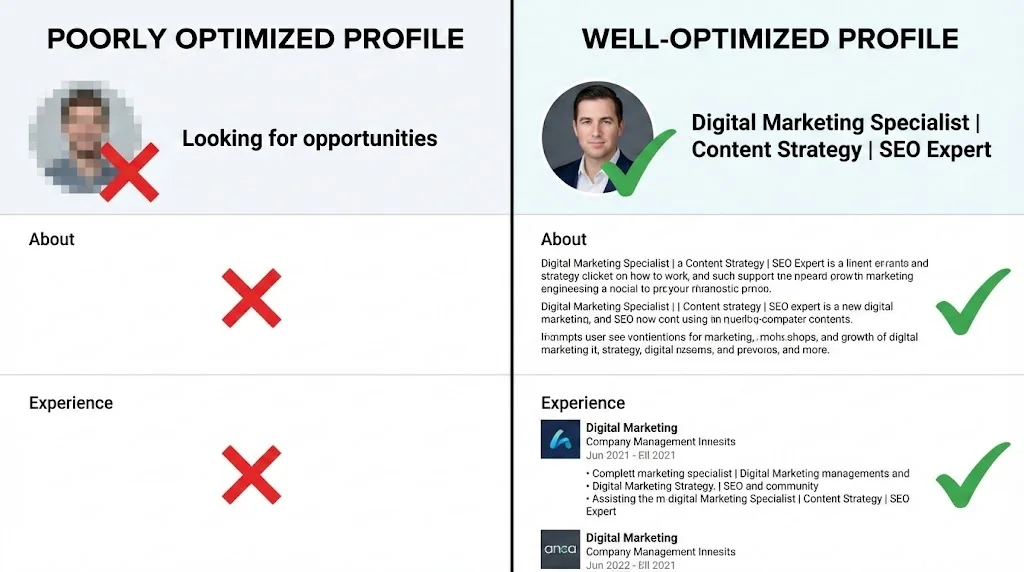
Best Practices for Presenting Your Promotion Professionally
A promotion gives you an opportunity to strengthen your professional identity. Use it thoughtfully.
- Show career progression: Keep previous and current positions visible.
- Highlight achievements: Include measurable results when you have reliable figures.
- Use clear job descriptions: Explain your responsibilities in simple language.
- Keep dates accurate: Maintain consistency across your LinkedIn profile and resume.
- Update relevant skills: Reflect the abilities required for your new position.
- Thank your supporters: Recognize people who contributed to your professional development.
- Maintain authenticity: Avoid exaggerated claims or unnecessary self-promotion.
A Practical Example of Career Progression
Consider Sarah, who started as a Content Writer at a digital marketing agency.
After two years, she received a promotion to Content Manager.
Instead of replacing her previous position, Sarah added her new role separately. She updated her headline, included her linkedin team management responsibilities, and highlighted her content strategy achievements.
She also published a short announcement thanking her colleagues and manager.
As a result, visitors could understand her professional journey without searching through separate employment entries.
This illustrates how a well-organized LinkedIn profile can communicate career growth clearly.
Final Thoughts
Adding a promotion to LinkedIn is a simple process, but presenting it professionally requires attention to detail.
Update your Experience section, keep your previous position visible, and make sure your company information and employment dates are accurate. Then review your headline, skills, and About section to reflect your new responsibilities.
If you want to share the achievement, publish a thoughtful announcement that recognizes your professional journey and the people who supported you.
Most importantly, use your updated LinkedIn profile to communicate your growing expertise, leadership abilities, and professional value.
Frequently Asked Questions About Adding a Promotion on LinkedIn
How do I add a promotion to my LinkedIn profile?
Open your profile, find the Experience section, and select Add Position. Enter your new job title, company name, promotion date, and responsibilities. Save your changes to update your employment history.
How do I announce a promotion on LinkedIn?
Click Start a post on your LinkedIn homepage. Write a short announcement mentioning your new position, thank your colleagues, and share your excitement about the opportunity. Review your audience settings before publishing.
How do I update my job title on LinkedIn?
Open your Experience section and edit your existing position if the title has changed without a separate role. If you’ve received a promotion, add a new position and keep your previous role in your employment history.
Do I need to delete my previous job after getting promoted?
No. Keep your previous position whenever possible. Adding your new role separately helps demonstrate career progression and preserves your employment history.
Will LinkedIn automatically announce my promotion?
Not necessarily. LinkedIn can share eligible job updates when your profile-sharing settings allow it. However, you can turn notifications off and publish a separate announcement yourself.
Can I add a promotion without notifying my network?
Yes. Turn off Share profile updates before saving your new position. Your profile will still display the changes to people who visit it.
Can I edit my promotion details after saving?
Yes. Open your Experience section, select the Edit icon beside your position, make the necessary corrections, and save your changes.