
LinkedIn Profile Viewer: How to View Profiles Anonymously in 2026
LinkedIn is one of the most popular platforms for professional networking, job searching, and business growth. Whether you’re looking for a potential employer, researching a competitor, or checking someone’s professional background, you may want to view their profile without sharing your identity.
A LinkedIn Profile Viewer helps you understand who visits LinkedIn profiles and what information is available when you browse other members. LinkedIn also offers privacy settings that let you control how your identity appears when you view someone’s profile.
In this guide, you’ll learn how LinkedIn profile viewing works, how to browse in Private Mode, whether you can view profiles without an account, and how to manage your own profile visibility.
What Is a LinkedIn Profile Viewer?
A LinkedIn Profile Viewer is a feature or tool used to view information on LinkedIn member profiles. It can refer to LinkedIn’s built-in profile viewing features or third-party websites that claim to show public profile information.
LinkedIn allows users to view professional details such as:
- Name and professional headline
- Profile photo and location
- Current and previous work experience
- Education and qualifications
- Skills and certifications
- Public posts and professional activity
The information available depends on the person’s privacy settings, your connection status, and whether you’re signed in to LinkedIn.
LinkedIn also provides a Who’s Viewed Your Profile feature. It helps members understand who has visited their profile, although the information shown depends on each visitor’s privacy settings and the account features available.
How to See Who Viewed Your LinkedIn Profile
LinkedIn allows members to check recent profile visitors through its built-in analytics. This feature can help you understand who is interested in your professional experience, skills, or services.
Follow these steps:
- Sign in to your LinkedIn account.
- Click the Me icon at the top of your homepage.
- Select View Profile.
- Scroll to the Analytics section.
- Select your profile views to open the visitor information.
You may see a visitor’s name and headline, limited professional details, or only the label “LinkedIn Member.”
The information depends on the visitor’s profile viewing settings. If someone uses Private Mode, you won’t be able to see their name, even if you have a Premium subscription.
LinkedIn’s visitor information can also vary depending on recent activity and available account features.
How to View LinkedIn Profiles in Private Mode
Private Mode is LinkedIn’s built-in option for people who want to browse profiles without showing their name and headline to the profile owner.
When you enable this setting, your visit may appear as LinkedIn Member instead of displaying your identity.
Here’s how to turn it on:
- Sign in to your LinkedIn account.
- Click the Me icon.
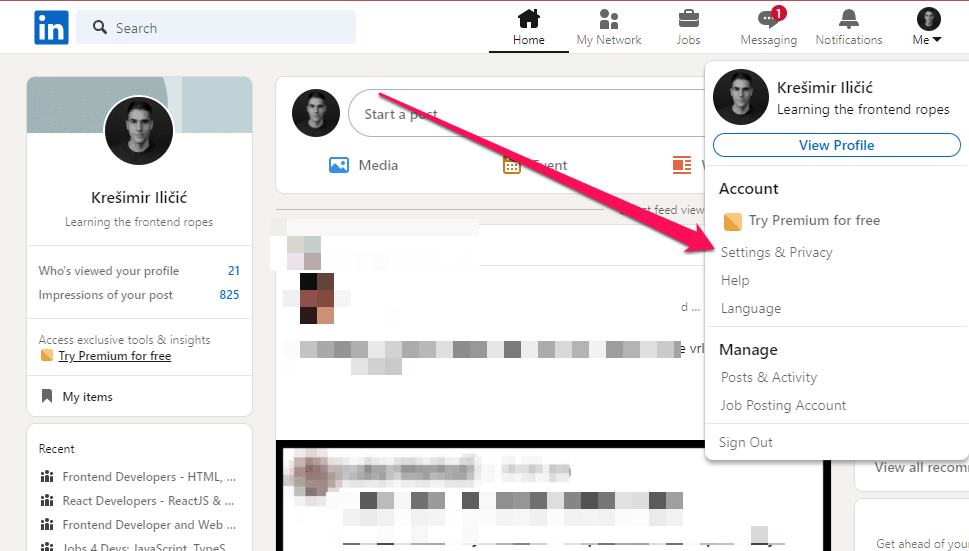
- Open Settings & Privacy.
- Select Visibility.
- Find Profile viewing options under Visibility of your profile and network.
- Select Private Mode.
Your setting will be saved automatically.
LinkedIn also provides other viewing options. You can choose to show your name and headline or display limited professional characteristics, depending on the available settings.
Important: Private Mode protects your identity from the person whose profile you view. However, it doesn’t mean you’re invisible to LinkedIn itself.
Also, using Private Mode can affect the visitor information available to you. If you want to see more details about people visiting your own profile, review LinkedIn’s current account and privacy options before changing this setting.
Can You View LinkedIn Profiles Without an Account?
Yes, you may be able to view some LinkedIn profiles without signing in. However, access is limited and depends on the person’s public profile settings and LinkedIn’s access restrictions.
A public profile can show selected information to people who aren’t logged in. This may include a person’s name, headline, location, work experience, or education.
Try these methods:
Use Google Search
Search for the person’s name along with their company or job title. For example:
John Smith LinkedIn Marketing Manager
If their public profile is indexed, Google may show it in the results.
Open the Public Profile Link
If you already have someone’s LinkedIn profile URL, open it in your browser. You may see a public version of the profile, although LinkedIn may ask you to sign in to view additional details.
Remember the Limitations
Not every LinkedIn profile is fully available to visitors without an account. Some information may be hidden, and search results may contain outdated details.
Also explains that public profile settings control which profile sections can appear to people who aren’t signed in or on search engines such as Google and Bing.
LinkedIn Profile Viewer: Free vs. Premium
Both provide access to profile-related features, but the available insights and tools can differ.
| Feature | Free Account | Premium Account |
| View LinkedIn profiles | Yes, with access limits | Yes, with access limits |
| Check profile visitors | Basic information | Additional viewer insights, subject to privacy settings |
| Browse in Private Mode | Yes | Yes |
| See private-mode visitors’ names | No | No |
| Profile analytics | Basic insights | Additional features depending on the plan |
Premium does not allow you to identify people who have chosen complete Private Mode. Their identities remain hidden.
The right option depends on your goals. A free account may be enough for occasional profile research and networking. Premium may be useful if you regularly use LinkedIn for recruitment, sales, business development, or professional networking.
Check LinkedIn’s official Premium information for the features included in each plan.
How to Manage LinkedIn Profile Visibility Settings
Your LinkedIn profile contains professional information that you may not want everyone to see. LinkedIn provides visibility settings that help you control which details appear to other members and people outside the platform.
To review these settings:
- Open LinkedIn and sign in.
- Click Me and select Settings & Privacy.
- Open the Visibility section.
- Review your profile and network visibility options.
- Adjust the settings according to your preferences.
You can manage several areas, including:
- Profile viewing options: Choose how your identity appears when you visit other profiles.
- Public profile visibility: Control which profile sections can appear outside LinkedIn.
- Email discoverability: Manage who can find you through your email address.
- Phone discoverability: Control who can find you using your phone number.
- Off-LinkedIn visibility: Review how your profile information may appear through permitted external services.
If you want recruiters and potential clients to find you, keeping relevant professional information public may help. However, avoid sharing personal details that aren’t necessary for your professional presence.
You can read more in LinkedIn’s official public profile visibility guide.
Profile Views vs. Search Appearances on LinkedIn
Profile views and search appearances are two different metrics. Understanding them can help you measure your LinkedIn visibility more accurately.
Profile Views
Profile views show how many people have visited your LinkedIn profile. These visits may indicate that someone wants to learn more about your experience, skills, or professional background.
For example, a recruiter may visit your profile after seeing your application or a potential client may check your experience before contacting you.
Search Appearances
Search appearances show how your profile is discovered or displayed across LinkedIn. Your name and headline may appear in search results, posts, comments, recommendations, and other areas of the platform.
Here’s a simple comparison:
| Metric | What It Shows |
| Profile Views | People who visited your profile |
| Search Appearances | Places where your profile appeared |
| Profile Visitors | Members who opened your profile |
| Search Insights | Information about how people discovered you |
To check your search appearances, open your LinkedIn profile and scroll to the Analytics section. Select Search Appearances to review the available information.
These metrics help you understand whether people are finding your profile and whether they’re interested enough to visit it. LinkedIn provides more details about these analytics here.
Why You May Not Be Able to View a LinkedIn Profile
Sometimes, you may open a LinkedIn profile and find that certain information is unavailable. This doesn’t always mean the account has been deleted.
Here are some common reasons:
- Private profile settings: The member may have limited public access to their information.
- Sign-in requirements: LinkedIn may require you to log in before showing more details.
- Account restrictions: The profile may be temporarily restricted or unavailable.
- Blocked access: The member may have blocked your account.
- Removed information: The person may have deleted or updated parts of their profile.
- Search engine delays: Google may still show an older version of a profile after changes.
If you’re unable to view a profile, try signing in to LinkedIn and opening the direct profile URL. Keep in mind that you cannot bypass another member’s privacy settings.
Are Third-Party LinkedIn Profile Viewer Tools Safe?
Some websites claim to let users view LinkedIn profiles anonymously without signing in. However, you should be careful before using these services.
Third-party tools may have different features and privacy practices. Some may collect browsing information, request unnecessary permissions, or ask for your LinkedIn login details.
Before using any external service, consider these precautions:
- Avoid sharing your LinkedIn password with third-party websites.
- Check the website’s privacy policy.
- Don’t download unknown browser extensions or software.
- Avoid tools that promise access to private profiles.
- Don’t use automated scraping services that may violate LinkedIn’s rules.
For most users, LinkedIn’s built-in Private Mode is the safer and more straightforward option for anonymous profile browsing.
Final Thoughts
A LinkedIn Profile Viewer can help you understand profile activity and learn how people interact with professional profiles. Whether you’re researching recruiters, checking potential clients, or building your professional network, it’s useful to understand how LinkedIn’s viewing options work.
Frequently Asked Questions
Can I use a LinkedIn Profile Viewer online for free?
Yes. You can view publicly available LinkedIn profiles for free through LinkedIn. However, access to profile details may be limited by the person’s privacy settings and LinkedIn’s sign-in requirements.
Can I view a LinkedIn profile without logging in?
Yes, some public LinkedIn profiles can be viewed without an account. However, LinkedIn may show only limited information or ask you to sign in.
How can I view LinkedIn profiles anonymously?
Sign in to LinkedIn, open Settings & Privacy, select Visibility, and choose Private Mode under profile viewing options. Your visit will appear as an anonymous LinkedIn Member rather than showing your name.
Can I see who viewed my LinkedIn profile?
Yes. LinkedIn’s Who’s Viewed Your Profile feature shows available visitor information based on your account type, recent activity, and visitors’ privacy settings. Free accounts have limited viewer history, while eligible Premium plans offer additional insights.
Does LinkedIn Premium show anonymous profile viewers?
No. Premium doesn’t reveal the names of people who browse in complete Private Mode. It can provide additional viewer history and insights, but members’ privacy settings still apply.
Is a LinkedIn profile viewer extension safe to use?
Not every browser extension is safe. Avoid tools that request your LinkedIn password, collect unnecessary personal information, or promise access to private profiles.
What is the difference between LinkedIn profile views and search appearances?
Profile views count visits to your profile, while search appearances show how often your profile appeared in LinkedIn search and discovery results. Both metrics help you understand your professional visibility.
Does LinkedIn notify someone when I view their profile?
LinkedIn may show your visit in the person’s profile viewer list, depending on your viewing settings. If you use Private Mode, your name and headline won’t be shared with that person.