
How to Share Your LinkedIn Profile: A Step-by-Step Guide
Sharing your LinkedIn profile helps recruiters, employers, and potential clients learn about your professional background. You can send your profile link through WhatsApp, email, Facebook, or add it to your resume.
To share your profile, open LinkedIn, visit your profile page, find your profile URL, and copy it. You can then paste the link wherever you want.
In this guide, you’ll learn how to share LinkedIn profile URL on desktop and mobile. You’ll also learn how to customize your link, manage privacy settings, and fix common sharing problems.
Why Should You Share Your LinkedIn Profile?
Your LinkedIn profile works like an online professional introduction. It helps people understand your skills, experience, achievements, and career interests.
Here are some important benefits:
- Job opportunities: Recruiters can review your professional background.
- Networking: New connections can learn more about your work.
- Personal branding: You can showcase your expertise and professional identity.
- Business growth: Potential clients can understand your services.
- Career visibility: Employers can easily access your professional information.
For example, when applying for a marketing position, include your LinkedIn link with your resume. This gives hiring managers another way to review your experience.
How to Share Your LinkedIn Profile on Desktop
If you use LinkedIn on a computer, finding your profile link takes only a few steps.
Follow These Steps
- Visit LinkedIn and sign in.
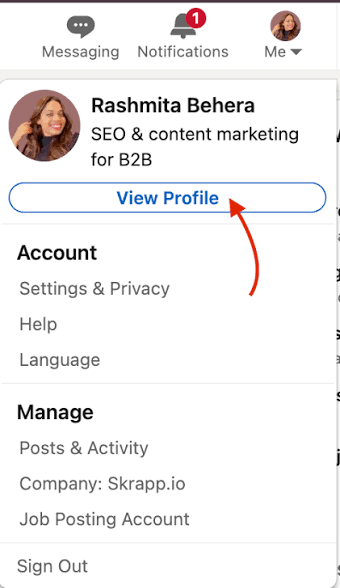
- Click the Me icon in the top navigation bar.
- Select View Profile.
- Find Public profile & URL on the right side.
- Locate your LinkedIn profile URL.
- Copy the complete link.
Your profile URL generally follows this format:
Once copied, you can paste it into an email, WhatsApp message, resume, or website.
Tip: Open your copied link in another browser tab before sharing it. This helps confirm that it leads to the correct profile.
How to Share Your LinkedIn Profile on Mobile
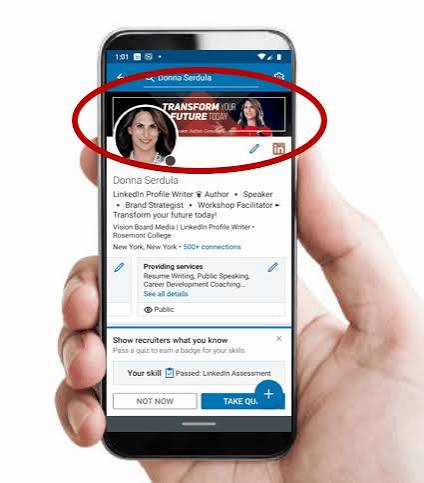
You don’t need a computer to share your LinkedIn profile. The mobile application also provides access to your profile link.
How to Share Your LinkedIn Profile on Android
- Open the LinkedIn app.
- Tap your profile picture in the upper-left corner.
- Open your profile.
- Tap More beside the Add section button.
- Select Contact info.
- Find your profile URL.
- Copy the link and share it.
How to Share Your LinkedIn Profile on iPhone
The process is almost identical on an iPhone.
- Open the LinkedIn application.
- Tap your profile picture.
- Visit your profile page.
- Select More.
- Tap Contact info.
- Locate your LinkedIn profile URL.
- Copy and share the address.
If your app displays different options, look for the profile-sharing feature or update your LinkedIn application.
Different Ways to Share Your LinkedIn Profile
After copying your URL, you can share it through different platforms. Choose the method that suits your audience.
How to Share Your LinkedIn Profile Through WhatsApp
WhatsApp makes sharing your professional profile quick and convenient.
- Copy your LinkedIn profile URL.
- Open WhatsApp.
- Select the person you want to contact.
- Paste your link into the message box.
- Add a short introduction.
- Tap Send.
Example message:
“Hi! I’d like to connect with you professionally. Here’s my LinkedIn profile if you’d like to learn more about my experience: [Your LinkedIn URL].”
How to Share Your LinkedIn Profile in an Email
Email works particularly well when contacting recruiters, hiring managers, and potential clients.
Follow these steps:
- Open Gmail or another email service.
- Create a new message.
- Enter the recipient’s email address.
- Write a short professional introduction.
- Paste your LinkedIn profile URL.
- Review and send your email.
You can also add your profile link to your permanent email signature.
How to Share Your LinkedIn Profile on Facebook
You can share your profile with friends, colleagues, and professional communities.
- Copy your LinkedIn URL.
- Open Facebook.
- Create a new post or message.
- Paste your link.
- Add a short description.
- Publish your post.
Consider your audience before sharing your profile publicly.
How to Add Your LinkedIn Profile Link to Your Resume
Adding your LinkedIn URL to your resume helps employers review your professional background.
Place the link near your name and contact information.
Example:
- Name: Sarah Ahmed
- Email: sarah@example.com
- Phone: +1 555 123 4567
- LinkedIn: linkedin.com/in/sarah-ahmed
Make sure your resume and LinkedIn profile show consistent job titles, employment dates, and qualifications.
How to Find Your LinkedIn Profile URL
If you’re wondering, where can I find my LinkedIn profile link?, the answer depends on your device.
| Device | Where to find your URL |
| Desktop | Profile → Public profile & URL |
| Android | Profile → More → Contact info |
| iPhone | Profile → More → Contact info |
A standard LinkedIn profile URL usually begins with:
Your personal name or customized username appears after this address.
Remember that your personal profile URL differs from LinkedIn’s homepage URL. The personal link takes visitors directly to your professional profile.
How to Customize Your LinkedIn Profile URL
A customized URL looks cleaner and is easier to remember. LinkedIn allows members to edit the final part of their public profile address.
For example:
- Default style: linkedin.com/in/sarah-ahmed-82736491
- Custom style: linkedin.com/in/sarah-ahmed
Steps to Customize Your URL
- Open your LinkedIn profile on desktop.
- Find Public profile & URL.
- Click the edit icon.
- Locate Edit your custom URL.
- Enter your preferred name.
- Click Save.
According to LinkedIn’s official guidelines, custom URLs can contain 3–100 characters. They cannot contain spaces or certain special characters.
If your preferred URL is unavailable, try adding your middle initial or professional specialty.
Expert tip: Choose a simple URL and keep it consistent across your resume, business cards, and website.
How to Make Your LinkedIn Profile Ready for Sharing
Before sending your link, make sure your profile presents you professionally.
Use a Professional Profile Picture
Choose a clear photograph with good lighting and a simple background. Your picture should help visitors recognize you easily.
Write a Clear LinkedIn Headline
Your headline should explain your professional role and relevant skills.
For example:
Digital Marketing Specialist | SEO | Content Strategy | Lead Generation
Improve Your About Section
Explain what you do, what experience you have, and how you help others. Include relevant achievements instead of generic statements.
Highlight Your Skills and Experience
Add relevant work experience, certifications, education, and projects. Whenever possible, include measurable achievements that demonstrate your actual work.
LinkedIn Profile Sharing and Privacy Settings
Sharing your profile link doesn’t automatically make every detail publicly visible.
What Is a Public LinkedIn Profile?
A public profile displays selected information to people outside your LinkedIn network. Depending on your settings, visitors may see your name, headline, experience, education, and other details.
How to Manage Profile Visibility
- Open LinkedIn.
- Click your profile picture.
- Select Settings & Privacy.
- Open the Visibility section.
- Select Edit your public profile.
- Review your available visibility options.
- Adjust them according to your preferences.
You can learn more through the LinkedIn Help Center.
Can People View Your Profile Without Logging In?
Sometimes, yes. Visitors may access parts of your public profile without signing in. However, visibility depends on your settings and LinkedIn’s access restrictions.
Common LinkedIn Profile Sharing Problems and Solutions
Sometimes, your profile link may not work as expected. Here are common problems and their solutions.
| Problem | Solution |
| Profile link doesn’t open | Copy the complete URL again. |
| Profile not found | Check your current custom URL. |
| People cannot see your profile | Review public visibility settings. |
| Custom URL is unavailable | Try another name variation. |
| Share option is missing | Use Contact info or desktop settings. |
Always test your link before sending it. Also, remove unnecessary spaces when pasting the URL into messages.
Best Practices for Sharing Your LinkedIn Profile
Follow these simple practices to make your profile sharing more effective:
- Update your profile before sharing it.
- Use a professional profile picture and headline.
- Choose a clean custom URL.
- Test your link before sending it.
- Add a personalized message.
- Review your public profile visibility.
- Keep your work experience and skills current.
These small improvements help people understand your professional background more easily.
Final Thoughts
Knowing how to share your LinkedIn profile makes professional networking easier. You can copy your URL from desktop or mobile and send it through WhatsApp, email, Facebook, or your resume.
Before sharing, review your headline, About section, work experience, and privacy settings. A clean URL and complete profile create a better professional introduction.
Frequently Asked Questions About Sharing LinkedIn Profiles
How do I share my LinkedIn profile link?
Open your profile, find the Public profile & URL section on desktop, or Contact info on mobile. Copy your URL and paste it into your preferred application.
How do I copy my LinkedIn URL on my phone?
Open your LinkedIn app, visit your profile, tap More, and select Contact info. Find your profile URL and copy it.
How do I share my LinkedIn profile from a computer?
Sign in to LinkedIn, click Me, select View Profile, and copy your address from Public profile & URL.
How do I send my LinkedIn profile through WhatsApp?
Copy your profile URL, open WhatsApp, select a contact, and paste the link into the chat. Add a short introduction and send your message.
Can I share my LinkedIn profile without connecting?
Yes. You can share your public profile URL without becoming someone’s connection. However, the recipient’s access depends on your profile visibility settings.
Does LinkedIn notify someone when I share their profile?
LinkedIn generally doesn’t notify someone simply because you share their profile link. Profile views and other activities have separate visibility settings.