
How to Make a Company Page on LinkedIn: Step-by-Step Guide
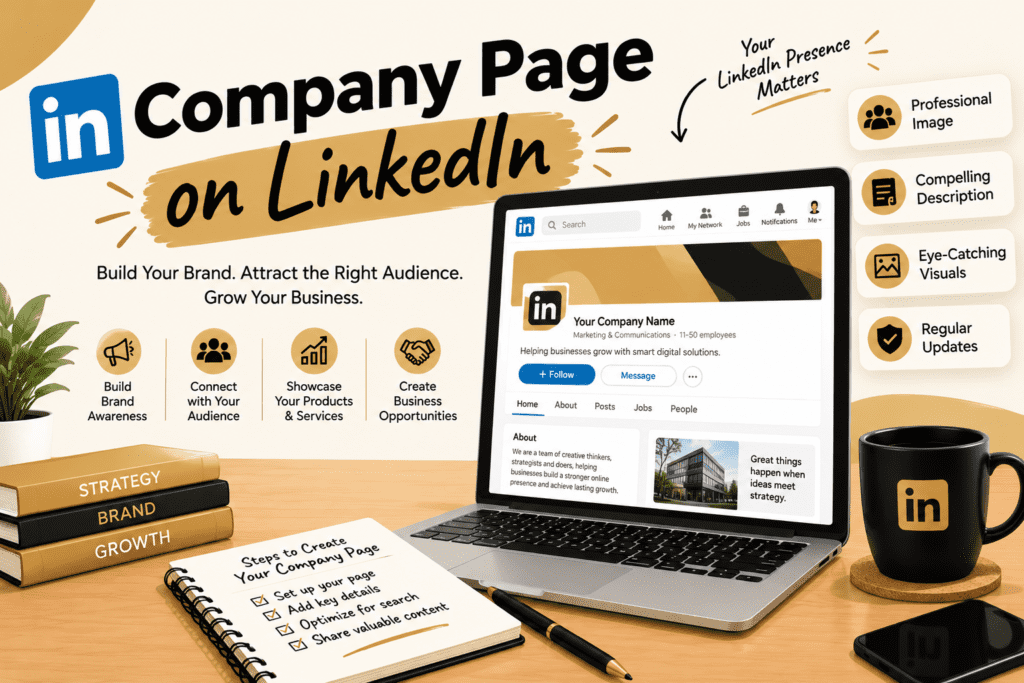
Creating a LinkedIn Company Page helps your business build credibility, connect with professionals, and share company updates. It also gives potential customers a place to learn about your services, products, and expertise.
Whether you run a startup or an established business, you can create a professional page with a few simple steps. This guide explains how to create, optimize, and manage your LinkedIn Company Page.
What Is a LinkedIn Company Page?
A LinkedIn Company Page is a business profile that represents your organization on LinkedIn. Unlike a personal profile, it focuses on your company’s brand, services, achievements, and updates.
A well-maintained page can help you:
- Build brand awareness and trust.
- Share company news and useful content.
- Attract potential customers and business partners.
- Support recruitment and employer branding.
- Direct visitors to your business website.
You can create a page for a small business, startup, agency, or established company.
What You Need Before Creating a LinkedIn Company Page
Before starting the LinkedIn company page creation process, prepare the following details:
- A personal LinkedIn account.
- Your official business name.
- A professional company logo.
- A short company description.
- Your website URL.
- Your industry and company size.
- A suitable company banner.
LinkedIn may also require your account to meet certain eligibility requirements. Complete your personal profile and establish connections before creating a page.
How to Make a Company Page on LinkedIn
Follow these steps to create a LinkedIn page for a business using a desktop browser.
Step 1: Log In to LinkedIn
Visit LinkedIn and sign in to your personal account.
Make sure your account details are accurate. A complete profile can help establish credibility when managing your business page.
Step 2: Open the Page Creation Option
Click the For Business icon in the top navigation menu. Look for the option to create a company page or organization page.
LinkedIn’s interface may change over time. If you cannot find the option, visit the official LinkedIn Page creation guide.
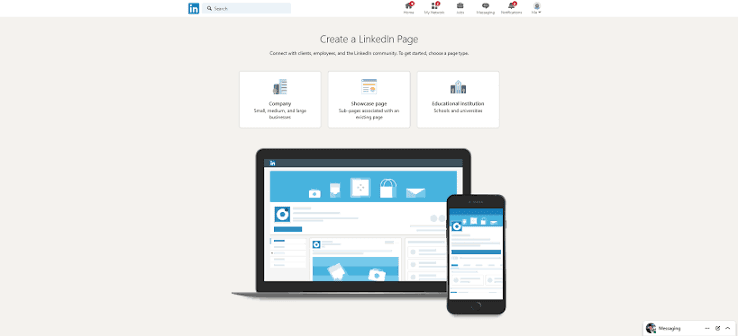
Step 3: Select Your Page Type
Choose the page type that best describes your organization. Depending on the options available, you may see choices for a company, showcase page, or educational institution.
For most businesses, selecting the company option is appropriate.
Step 4: Enter Your Business Information
Complete the required fields, including:
| Field | What to Enter |
| Name | Your official business name |
| LinkedIn public URL | A short, unique company URL |
| Website | Your official business website |
| Industry | Your primary business industry |
| Company size | Your number of employees |
| Organization type | Your business structure |
Choose a professional URL that closely matches your brand. Avoid unnecessary numbers or confusing abbreviations.
Step 5: Add Your Company Logo
Upload a clear logo that represents your business. Use a high-quality image that remains readable at smaller sizes.
A consistent logo helps visitors recognize your brand across LinkedIn and other platforms.
Step 6: Confirm Your Authority
Review LinkedIn’s confirmation requirements and check the box confirming that you are authorized to represent the organization.
Read the platform’s terms before proceeding.
Step 7: Create Your Page
Click the Create Page button. If LinkedIn accepts your information, your company page will be created.
You can then add more details, publish updates, and invite relevant connections to follow the page.
How to Optimize Your LinkedIn Company Page
Creating a page is only the first step. Effective company page optimization helps visitors understand your business and encourages them to take action.
Add a Professional Company Banner
Your banner is one of the first visual elements visitors notice. Use it to communicate your brand message, services, or value proposition.
The recommended LinkedIn company banner size is 1512 × 256 pixels. Keep important text and graphics clear, and check how the banner appears on different screens.
Write a Clear Company Description
Explain what your business does, whom it serves, and what makes your services useful.
Include relevant keywords naturally. For example, a digital marketing agency might mention SEO services, content marketing, and website optimization.
Avoid repeating keywords unnecessarily. Your description should help real visitors understand your business.
Add Your Website and Tagline
Include your official website URL so visitors can learn more about your products or services.
Write a short tagline that explains your company’s main offering. Keep it specific, professional, and easy to understand.
Complete All Relevant Details
Add any available information about your location, specialties, and business offerings. Accurate details make your page more useful and professional.
For more guidance, review LinkedIn’s official image specifications.
What to Do After Publishing Your Page
After you set up a LinkedIn page for a company, focus on making it active and useful.
Publish Your First Posts
Start with content that introduces your company and explains how you help customers.
Consider sharing:
- A company introduction.
- An overview of your services.
- Practical tips related to your industry.
- Customer success stories, when you have permission.
- Company news and updates.
Maintain a realistic posting schedule. Consistency matters more than publishing several low-quality posts.
Invite Relevant Connections
Invite appropriate professional connections to follow your page. Focus on people who may genuinely care about your business.
Avoid sending irrelevant invitations or treating follower numbers as your only measure of success.
Engage With Your Audience
Respond to relevant comments and questions. Participate in industry discussions and share useful insights.
Active engagement helps your company communicate with its audience and build professional relationships.
How to Manage Your LinkedIn Company Page
Effective LinkedIn company page management requires regular updates, clear responsibilities, and consistent branding.
LinkedIn offers different admin roles with different permissions. Assign access based on each person’s responsibilities.
For example, a content manager may need permission to publish posts, while another administrator may manage page settings.
Follow these practices:
- Give admin access only to trusted people.
- Review your page information regularly.
- Remove access when team members leave.
- Keep your branding consistent.
- Check comments and messages regularly.
- Follow LinkedIn’s policies when publishing content.
You can review permissions through LinkedIn’s Page admin roles guide.
How to Measure Your LinkedIn Page Performance
Use LinkedIn’s available analytics to understand how your page performs.
Focus on meaningful metrics instead of followers alone.
| Metric | What It Tells You |
| Impressions | How often your content appears |
| Engagement | How people interact with your posts |
| Followers | How your audience grows |
| Clicks | How often people click available links |
| Website traffic | Whether LinkedIn sends visitors to your site |
Review your results regularly and identify which topics attract the most relevant engagement.
If your goal is website traffic, use tracking links and Google Analytics 4 where appropriate. This can help you understand whether LinkedIn visitors take useful actions on your website.
Common LinkedIn Company Page Problems
You may occasionally experience problems when creating your page.
LinkedIn will not let me create a page. Your account may not meet certain requirements, or you may have reached a page creation limit. Review LinkedIn’s requirements and try again later if necessary.
My company URL is unavailable. Choose a different, unique public URL. Keep it short and consistent with your business name.
I cannot upload my logo or banner. Check the image dimensions, file format, and file size against LinkedIn’s current requirements.
I cannot edit company information. Confirm that you have the appropriate administrator permissions.
For additional help, visit LinkedIn help .
Final Thoughts
Learning how to make a company page on LinkedIn is a useful step toward building your business’s professional presence. Start by creating your page, adding accurate company details, and using consistent branding.
Then publish helpful content, engage with your audience, and review your analytics. With regular attention, your LinkedIn Company Page can support brand awareness, professional networking, and business growth.
Frequently Asked Questions
Is it free to create a LinkedIn Company Page?
Yes. Creating a standard LinkedIn Company Page is generally free. Some advertising and premium business features may require payment.
Do I need a personal LinkedIn profile?
Yes. You need a personal LinkedIn account to create and administer a company page.
Can a small business create a LinkedIn page?
Yes. Small businesses, startups, agencies, and larger organizations can use LinkedIn Company Pages to represent their businesses.
Can multiple people manage one company page?
Yes. You can assign additional administrators, provided they have the required LinkedIn accounts and permissions.
How often should I post on my company page?
Choose a schedule you can maintain consistently. Publish useful, relevant content rather than posting simply to increase frequency.