How to Get Your LinkedIn Profile Link
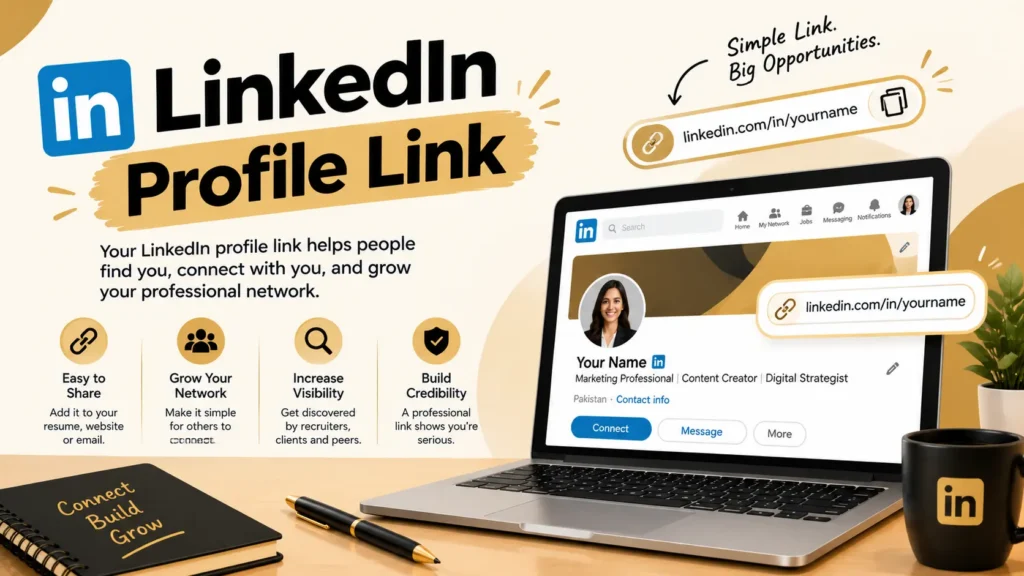
Need to share your LinkedIn profile but can’t find the link? You can find and copy your LinkedIn profile URL in less than a minute. The steps vary slightly between desktop and mobile.
Your LinkedIn profile link directs people to your professional profile. You can add it to your resume, job applications, email signature, or portfolio. This guide explains where to find your link, how to customize it, and how to fix common problems.
Key Takeaways
- Find your profile URL under Public profile & URL on desktop.
- On mobile, open your profile and check Contact info.
- Customize your URL to make it shorter and easier to share.
- Review your public profile settings to manage profile visibility.
- Test your link before adding it to professional documents.
Where to Find Your LinkedIn Profile URL
Your LinkedIn profile URL is the web address that directs people to your profile. A typical link starts with linkedin.com/in/.
The fastest way to find it depends on your device.
| Device | Where to look |
| Desktop | Profile settings under Public profile & URL |
| LinkedIn mobile app | Profile menu under Contact info |
| Mobile browser | Your profile’s contact section |
If you cannot see your public URL, check whether your profile has public visibility enabled. LinkedIn explains this process in its official help center.
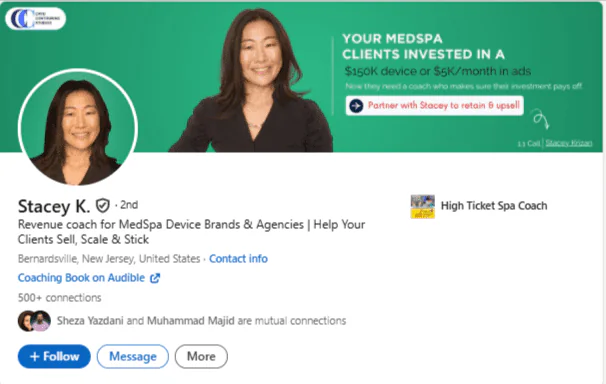
How to Get Your LinkedIn Profile Link on Desktop
Finding your profile link on a computer takes just a few steps.
Find and Copy Your LinkedIn Profile Link
- Visit LinkedIn and sign in.
- Click Me at the top of the page.
- Select View Profile.
- Look for Public profile & URL on the right.
- Click the option to edit your public profile settings.
- Find your public profile URL and copy it.
Share Your Profile Directly
You can also share your profile without manually copying its address. Open your profile and look for the available sharing options.
Choose the option to share your profile through LinkedIn messages or another supported method. This works well when you want to send your profile directly to a recruiter or colleague.
How to Get Your LinkedIn Profile Link on Mobile
You can find your profile URL directly in the LinkedIn app.
Find Your LinkedIn URL in the App
Follow these steps:
- Open the LinkedIn app.
- Tap your profile photo, then open your profile.
- Tap More beside the Add section button.
- Select Contact info.
- Find your URL under Your Profile.
- Copy the link or open the URL settings.
These steps follow LinkedIn’s official instructions. The app’s menu labels may change slightly with updates.
If you use LinkedIn in a mobile browser, open your profile and copy the address from the browser bar. Make sure it leads to your profile rather than a settings page.
How to Customize Your LinkedIn Profile URL
A short, professional URL looks cleaner on resumes and business cards. LinkedIn lets you customize the final part of your public profile URL.
How to Customize LinkedIn Profile URL
On desktop:
- Open your profile and select Public profile & URL.
- Click the edit icon beside your public profile URL.
- Enter your preferred name or a professional variation.
- Click Save.
On mobile, open your profile, select More, then Contact info. Tap the edit icon and select your profile URL to reach the customization settings.
Choose a Professional Custom Profile URL
LinkedIn allows custom URLs from 3 to 100 characters. The address cannot contain spaces or certain special characters, and your preferred URL must be available. You can change it up to five times within six months.
Choose a clear URL and avoid changing it unnecessarily. If you update it, remember to replace the old link on your resume, website, and email signature.
How Public Profile Settings Affect Your Link
Finding your URL doesn’t automatically mean everyone can see your entire profile.
Your public profile settings control which information appears to people outside LinkedIn. Depending on your settings, visitors may see your photo, headline, experience, or other profile details.
Before sharing your profile with recruiters or clients:
- Check that public visibility is enabled if you want a public profile.
- Review which profile sections appear publicly.
- Open your link in a separate browser tab.
- Confirm that the link points to your correct profile.
External search engines may take time to reflect changes to your public profile. Therefore, don’t assume a recent update will appear immediately in Google results.
How to Add Your LinkedIn Profile to Your Resume
How do I add my LinkedIn profile to my resume? Copy your profile URL and place it in the contact section near your email address and phone number.
For example:
Jane Smith Marketing Specialist jane@email.com | linkedin.com/in/jane-smith
A clean URL makes your resume easier to scan. Before submitting an application, test the link and ensure your LinkedIn profile supports the experience listed on your resume.
You can also share your profile through your email signature, portfolio, professional bio, or personal website.
LinkedIn Profile URL vs. Post URL
These links serve different purposes, so choose the right one.
| Link type | Purpose |
| Personal profile URL | Directs people to your professional profile |
| LinkedIn post URL | Opens a specific post |
| Company Page URL | Opens a business’s LinkedIn Page |
If a recruiter asks for your LinkedIn profile link, send your personal profile URL. A link to one of your posts won’t provide the same information.
Common Problems When Finding Your LinkedIn Link
Your Public Profile URL Is Missing
Check your public profile settings. LinkedIn states that a public profile URL won’t appear if your profile isn’t public.
Your Preferred Custom URL Is Unavailable
Someone else may already use that address. Try adding your middle initial or a relevant professional specialty instead.
Your Old Link No Longer Works
If you’ve changed your URL, update your older documents and online profiles. LinkedIn also lets you review previous custom URLs through its public profile settings.
Final Thoughts
Finding your LinkedIn profile link takes only a few steps. On desktop, check Public profile & URL. On mobile, open Contact info to locate your address.
Consider choosing a professional custom profile URL before adding it to your resume or email signature. Finally, test the link to make sure it opens the correct profile
Frequently Asked Questions
Where can I find my LinkedIn profile link?
On desktop, open View Profile and look under Public profile & URL. On mobile, open your profile and select Contact info.
What does a LinkedIn profile link look like?
A typical link looks like. Your actual URL may contain a different identifier.
Can I change my LinkedIn profile URL?
Yes. You can customize the final part of your public URL if your preferred address is available.
Why can’t I see my LinkedIn profile URL?
Your public profile may not be enabled. Check your visibility settings and follow LinkedIn’s official instructions.